
Start
Introduction
The start module is the home of Marad. In it, you can manage users, create user groups, manage documents, and much more. Please note that the essentials course only highlights the most important functions. For a full guide on the start module, we highly recommend taking the Marad Start user or administator course
Logging in
You can start the application by clicking on the Marad desktop icon, navigating to marad.online, or by tapping the Marad app icon on your phone. To login, enter your username and password. After successfully logging in, select a vessel or the fleetview option to see all of your vessels.

You will be greeted with an image of your vessel, along with the modules, functions, the Marad KPI’s (key performance indicators), and general functions like exporting the screen, updating the application, and more.
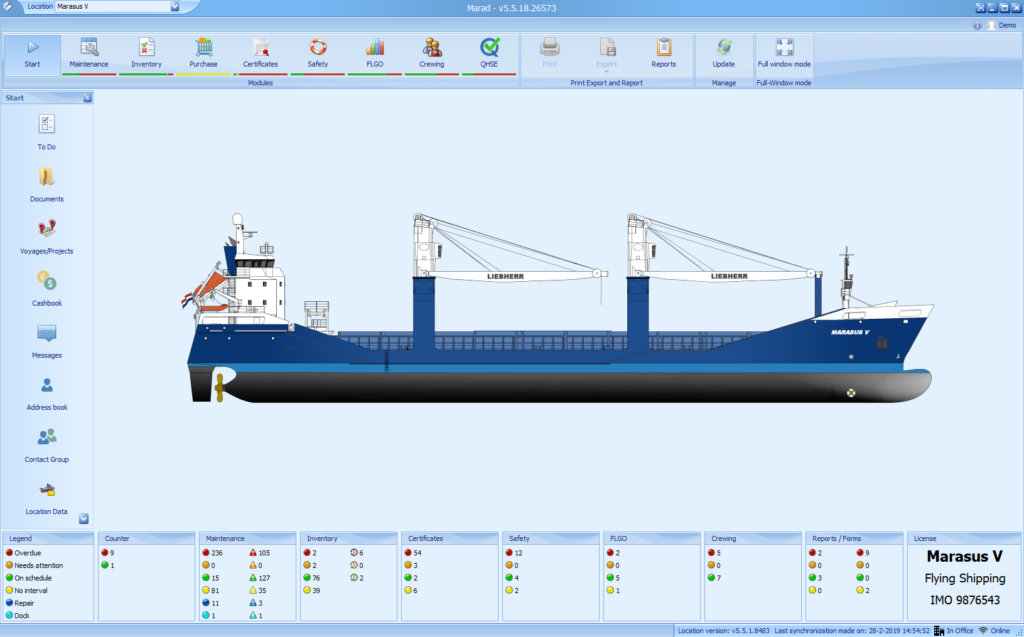
”You can now choose to open a module or a function. In this course, we focus on the essentials, so we will start with managing users and user groups. You can now choose to open a module or a function.
Users
In this course, we focus on the essentials, so we will start with managing users and user groups. To do so, scroll down on the left and select ‘Administration’:

We can now view, edit, delete, or add users. It is important to note that Marad utilizes the ‘right-click’ option a lot. To edit a user, either double click on a user, or right-click and press ‘Edit’.

We can change the various fields such as username, password, roles (user groups), locations (e.g., various vessels), and even enable automatic email reports. If you enable the latter, the user will receive automatic updates via email.
User groups
User groups determine which data users can see and edit. For example, an admin should have all permissions, but a cadet should not. It is important to set these up correctly, as access control is important. You do not want a cadet to delete your entire planned maintenance system, or erase valuable historic records. Luckily, all of this can be controlled in the Marad user groups function.

To enable a permission, check the box in front of it. To disable a permission, uncheck the box. The same applies to the module general permission. For more information or advice on how to set these up, please contact our support department at support@marasoft.nl.